
Amazon Q Developer Adds Code Explanation and Refactoring
AI KAPTAN
August 19, 2026
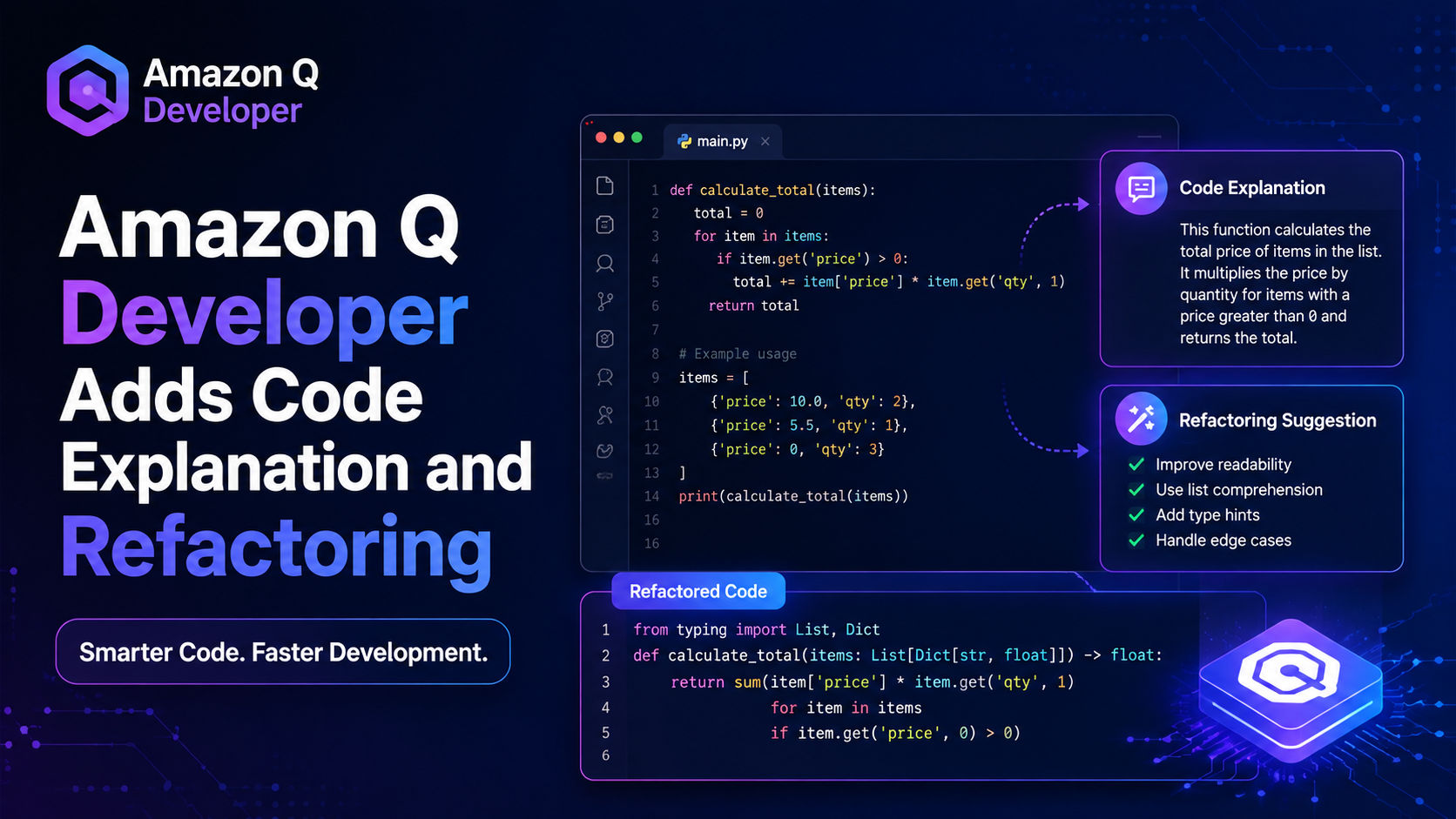
Quick answer: Amazon Q Developer lets developers select code inside an IDE and ask for explanations, refactoring, fixes, optimization, or generated tests. AWS documentation says Amazon Q Developer can also generate updated code from requested changes and insert that code directly into the original file.
Key Facts
- AWS documentation describes Amazon Q Developer as an IDE-based tool for explaining and updating specific lines or blocks of code.
- Amazon Q Developer provides actions including Explain, Refactor, Fix, Generate tests, Optimize, and Send to prompt, according to AWS.
- Amazon Q Developer can generate new code based on a requested change and allow developers to insert the result directly into the file where the original code came from.
- AWS says developers can highlight code in their IDE, right-click the selection, choose Amazon Q, and then select the desired action.
- Amazon Q Developer can generate unit tests for the current file or selected code, according to the AWS documentation.
How Amazon Q Developer Handles Selected Code
The workflow documented by AWS is built around a specific piece of code rather than requiring developers to describe an entire file from scratch. A developer highlights a section of code in an IDE, opens the context menu, selects Amazon Q, and chooses an operation such as Explain, Refactor, Fix, Generate tests, Optimize, or Send to prompt.
That selection-based workflow gives Amazon Q Developer a defined piece of code to work with. For developers maintaining an existing project, this can make AI assistance more directly connected to the code currently being reviewed.
AWS documentation also describes a code-update flow. A developer can ask Amazon Q Developer to change a particular line or block of code. Amazon Q Developer then generates code reflecting the requested modification, after which the developer can insert the updated code into the original file.
Amazon Q Developer for Code Explanation
One of the available actions is Explain. AWS describes this option as a way to get selected code explained in natural language.
This can be useful when a developer encounters unfamiliar logic inside an existing file. Instead of asking about an entire project, the developer can highlight the relevant section and request an explanation. The result is intended to describe the selected code in natural language.
The approach also fits maintenance work, where understanding a particular function or block may come before deciding whether that code should be changed.
Amazon Q Developer for Refactoring and Optimization
Amazon Q Developer includes separate actions for Refactor and Optimize. AWS says Refactor can improve code readability or efficiency, among other improvements.
The distinction matters because developers may use AI assistance for different stages of code maintenance. Refactoring can be used when existing code needs structural or readability improvements, while optimization provides another option when the goal is to improve the selected code.
Amazon Q Developer does not require the developer to manually rewrite the selected section before seeing a proposed change. The documented workflow lets the developer request an update and receive generated code that reflects the instruction.
Testing Selected Code With Amazon Q Developer
AWS also provides a Generate tests option for Amazon Q Developer. The documentation says the feature can create unit tests for the current file or selected code.
That makes testing part of the same context-menu workflow as explanation and refactoring. A developer working on a particular section can select the relevant code and request tests rather than switching to a separate process for the initial generation step.
The AWS documentation describes the feature as generating unit tests, while the developer remains responsible for reviewing the resulting code and deciding whether it fits the project.
Fixing Code Inside the IDE
Amazon Q Developer also includes a Fix action. The documented workflow allows developers to highlight a section of code and select Fix from the Amazon Q menu.
This places debugging assistance alongside explanation, refactoring, optimization, and test generation. The common interaction is selection-based: the developer identifies the code that needs attention and then chooses the operation from the IDE context menu.
For developers working through an existing codebase, that can reduce the amount of context they need to manually copy into a separate AI interface.
Send Code to the Amazon Q Chat Panel
The Send to prompt option provides another path. According to AWS, selecting this action copies the highlighted code to the Amazon Q chat panel, where developers can ask questions about the code.
This creates a bridge between targeted code selection and conversational interaction. A developer can start with a specific block and then use the Amazon Q chat experience to ask follow-up questions about that code.
The distinction between the available actions gives Amazon Q Developer several ways to work with the same selected code: explain it, modify it, test it, optimize it, fix it, or move it into a prompt for further questions.
What the Amazon Q Developer Workflow Means for Developers
The main feature described by AWS is less about generating an entire application from a blank prompt and more about applying AI assistance to code already visible in the development environment.
That makes the workflow particularly relevant to tasks such as understanding unfamiliar code, modifying a specific block, generating tests, and improving existing implementation. The developer starts by identifying the code that needs attention, while Amazon Q Developer generates an explanation or proposed change based on the selected context.
The generated code still needs developer review. AWS's documentation describes what Amazon Q Developer can generate and how developers can insert the result, but generated output remains code that should be evaluated against the project's requirements and existing implementation.
For teams evaluating AI coding assistants, Amazon Q Developer therefore offers a concrete workflow centered on selected code inside the IDE. Its documented capabilities cover explanation, refactoring, fixes, optimization, test generation, and conversational questions about highlighted code.
FAQ
What is Amazon Q Developer used for?
Amazon Q Developer can explain, refactor, fix, optimize, and generate tests for selected code inside an IDE, according to AWS documentation.
Can Amazon Q Developer update existing code?
Yes. AWS says developers can ask Amazon Q Developer to change a specific line or block, generate updated code, and insert that code into the original file.
Can Amazon Q Developer explain code?
Yes. The Explain action provides a natural-language explanation of selected code, according to AWS.
Can Amazon Q Developer generate unit tests?
Yes. AWS documentation says Amazon Q Developer can create unit tests for the current file or selected code.
How do developers use Amazon Q Developer with selected code?
Developers highlight code in their IDE, right-click the selection, choose Amazon Q, and then select an action such as Explain, Refactor, Fix, Generate tests, Optimize, or Send to prompt.
Can developers ask questions about selected code?
Yes. The Send to prompt option copies highlighted code into the Amazon Q chat panel so developers can ask questions about that code.
Author